

CUSTOMER ENGAGEMENT CAMPAIGN
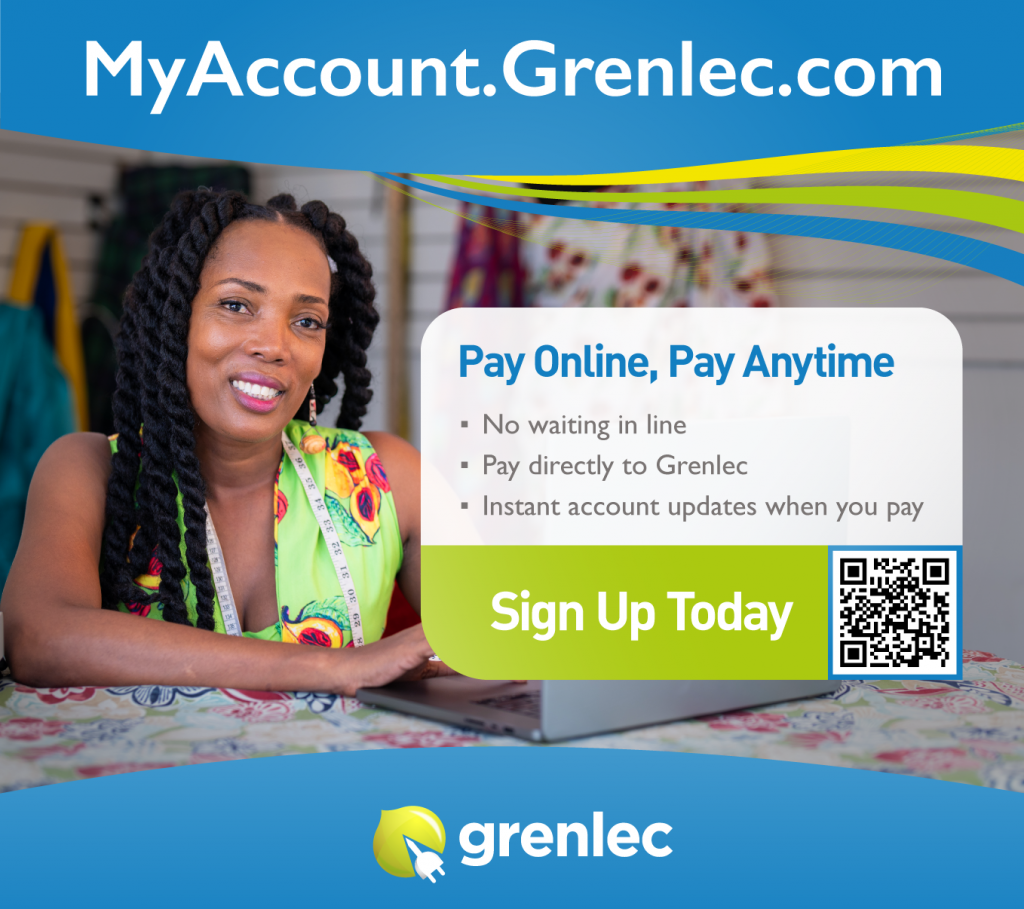
MyAccount.Grenlec.com
VIDEO EDUCATION SERIES
TARGETED CUSTOMER COMMUNICATIONS
- IVR Advertising
- Email Blasts
- Grenlec Mobile App Messages
- Emails to Large Commercial Customers
- Emails to Renewable Energy Customers
- MyAccount FAQ
- Training and Support for Internal Team
Members
- MyAccount Quick Facts
- Graphic – Steps to Register
- E-Billing FAQ
- Media Personalities (Grenada & Diaspora)
- Engagement with PURC, Line Minister and
Other Stakeholders
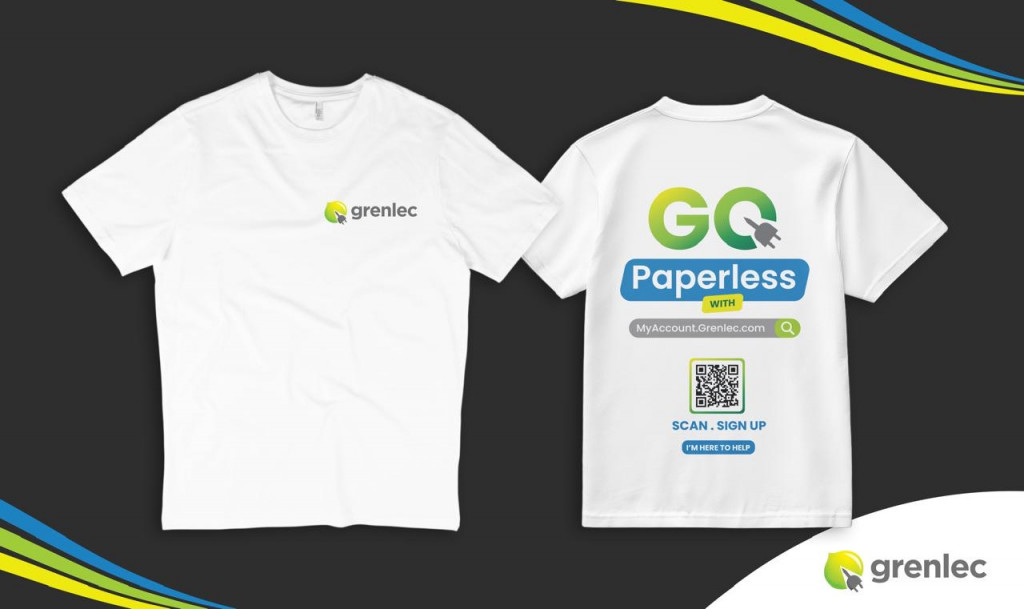
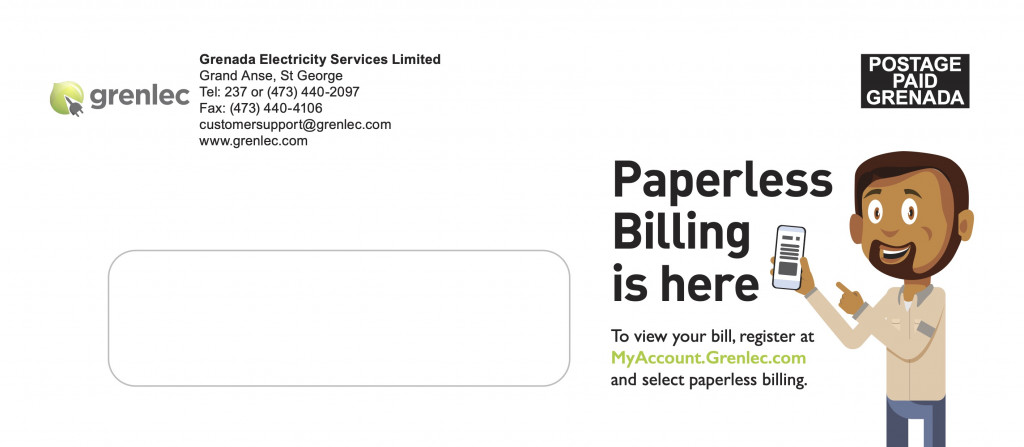
PRINT & ON-SITE PROMOTION
PRESS RELEASES
Blog
Get Ready! Sign Up for Paperless Billing
We’re moving to paperless billing. Follow these quick steps to
Sign Up and Say Hello to E-Billing
Life gets busy — your electricity bill doesn’t have
Grenlec Invites Customers to Sign Up for MyAccount.Grenlec.com
Grenlec invites all customers to sign up for MyAccount.Grenlec.com,
More Power in Your Hands – MyAccount.Grenlec.com
Pay your bill online directly to Grenlec, track usage,
Grenlec Announces Launch of MyAccount.Grenlec.com
,Grenlec is pleased to announce the launch of its
Frequently Asked Questions
MyAccount.Grenlec.com is Grenlec’s secure browser based application where you can:
- Pay your electricity bill online directly to Grenlec
- Set up auto pay or one-of payments
- Sign up for paperless billing to get your bill in your email inbox
- View and download extended billing and payment history
- Track your electricity usage
- Manage your account anytime, anywhere
- Make service requests and submit applications online
- Give other people full or limited access to view selective account information or receive account notifications
You can access MyAccount:
• Through the grenlec.com
• Directly via MyAccount.Grenlec.com
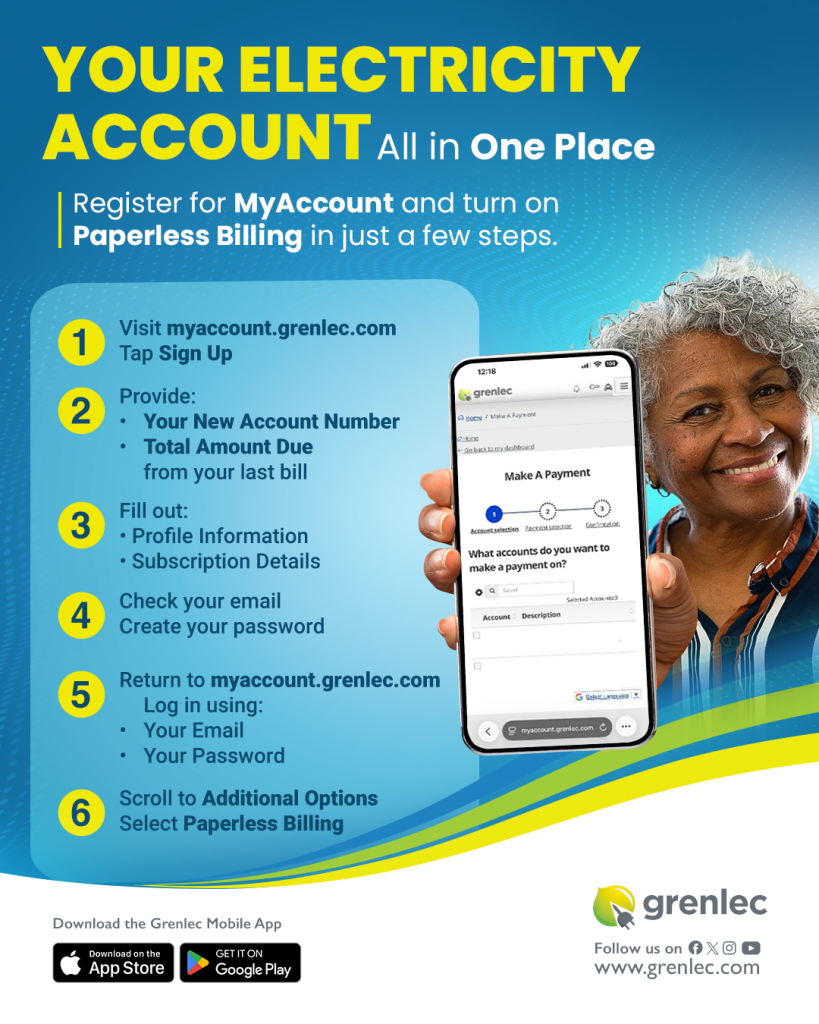
To register:
– Visit myaccount.grenlec.com and click “Sign Up”
– Type in your new account number and the total amount due on my most recent bill.
If you don’t know your new account number:
- Click “find my new account number” and type in your old number without the zeros at the front and click “search”. Your new account number will appear at the bottom of the search bar.
- Your new account number can also be found on the Grenlec mobile app under the “balances” tab, or at the top of any recent Grenlec bill.
– Fill out the “Profile Information” and “Subscription” sections.
– Once this is done, you will receive an email to the email address you provided while signing up. Follow the steps to create your password.
– Navigate back to MyAccount.Grenlec.com and sign in with your email address and the password you created.
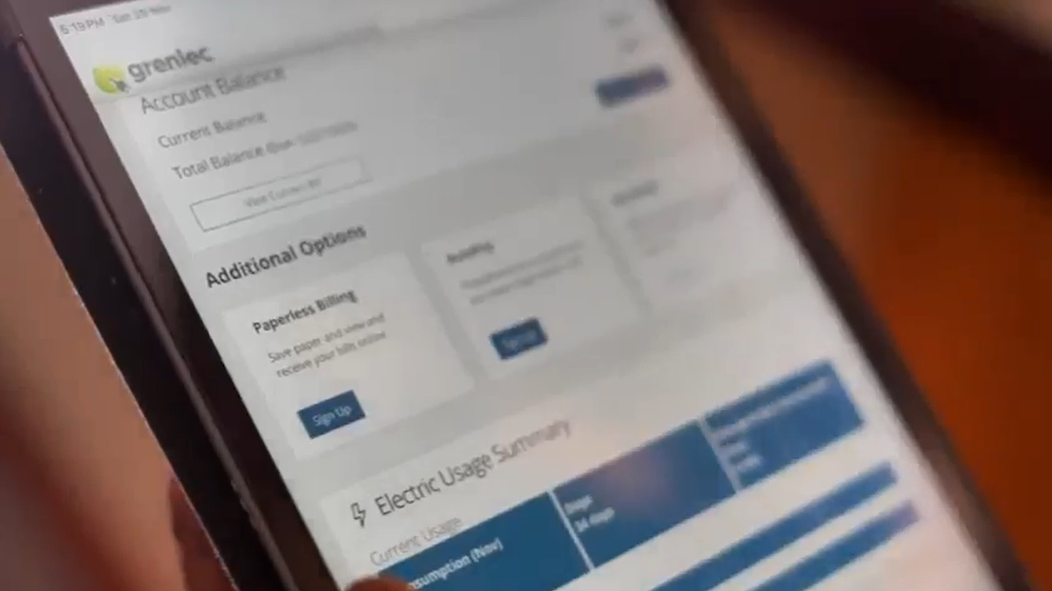
– Finally, scroll down to Paperless Billing, and click “Sign up”. Confirm your email address, select all your accounts and click “Sign Me Up”
Multi-factor authentication is an optional feature that provides additional security by requiring more than one method of authentication to login to MyAccount.Grenlec.com. Two Multi-factor Authentication methods are available: SMS or Google Authenticator App.
SMS: Please do not use this option as it is currently not applicable to Grenlec customers.
Google Authenticator App: When enabled, the user will need to retrieve a six- digit code from the Google Authenticator App when attempting to login to My Account.
The Mobile App is designed for quick, on-the-go access to essential services like:
– Bill balances
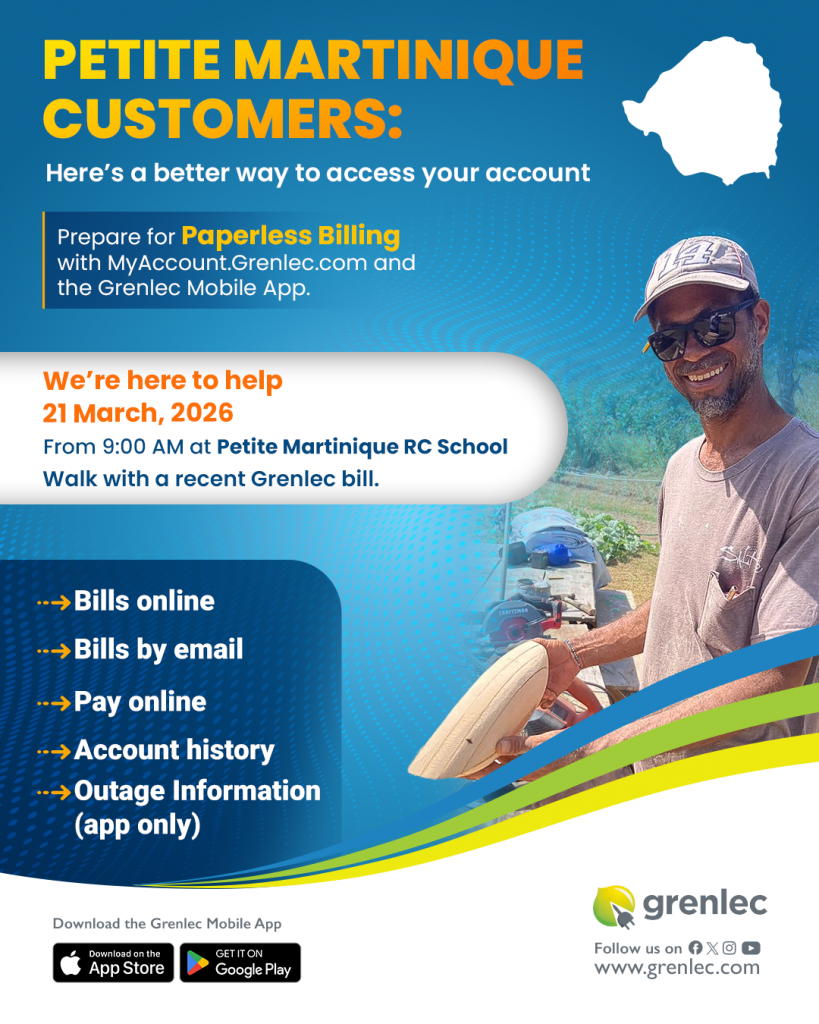
– Outage information (only available via the app)
– Usage and payment history for the last 12 months
MyAccount.Grenlec.com is a browser based application that offers advanced account features, including:
- Online bill access
- Online bill payments directly to Grenlec
- Forms and service requests can be completed and submitted through MyAccount.Grenlec.com
- Customers can update their contact information
- Extended billing history
With the launch of our new Customer Information System in October 2025, every customer was issued a new account number.
Your new account number can be found on:
• Your bills issued after October 2025
• The Grenlec Mobile App
• MyAccount.Grenlec.com account lookup
No. Your access number will remain the same.
Is the online portal secure?
MyAccount.Grenlec.com uses industry-standard encryption and secure authentication to protect your data and ensure your transactions are safe.
Use this feature to save and print all data for a specified time period. The data is available in CSV format which can be opened with many programs including Excel.
Grenlec provides several forms, which customers complete and submit on MyAccount.Grenlec.com. Customers will receive an automated acknowledgement. Grenlec reviews and responds to submissions within 3 business days.
• Call us at 237
• Visit MyAccount.Grenlec.com
• Visit any Grenlec Customer Care Centre for in-person assistance
• Yes, payments through the Customer Portal are reflected in real-time
• On the Mobile App, there may be a 15-minute delay
MyAccount.Grenlec.com accepts:
• Visa
• Mastercard
Yes. If you pay through your bank or other payment service:
• Update your records with your new Grenlec account number once you receive it
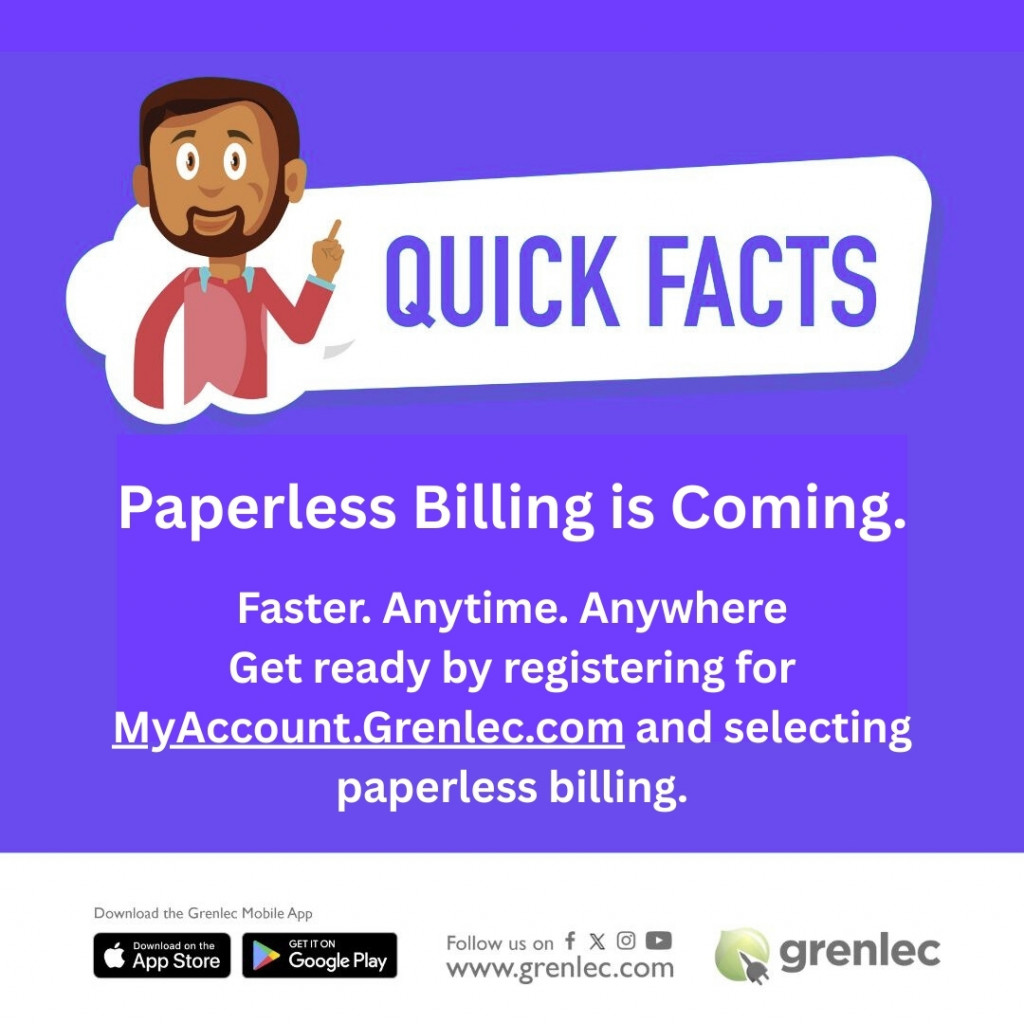
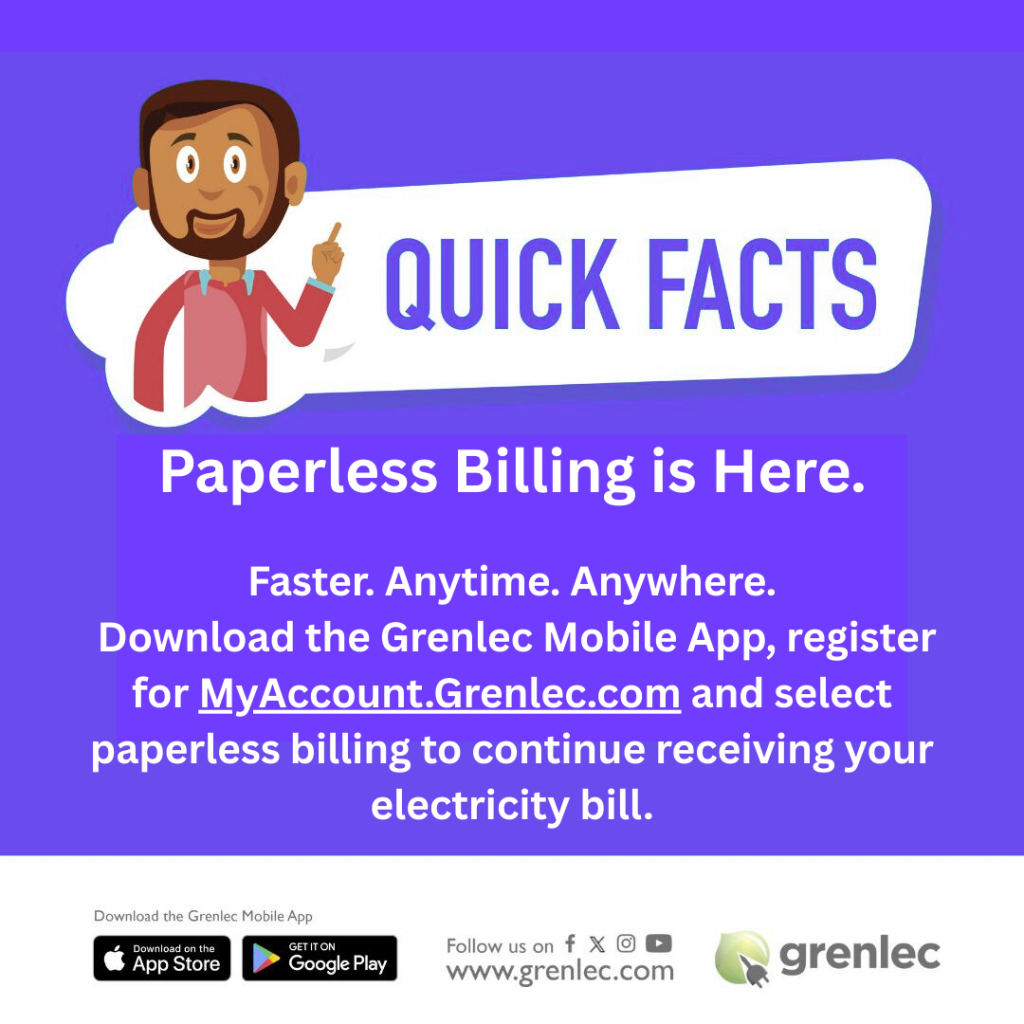
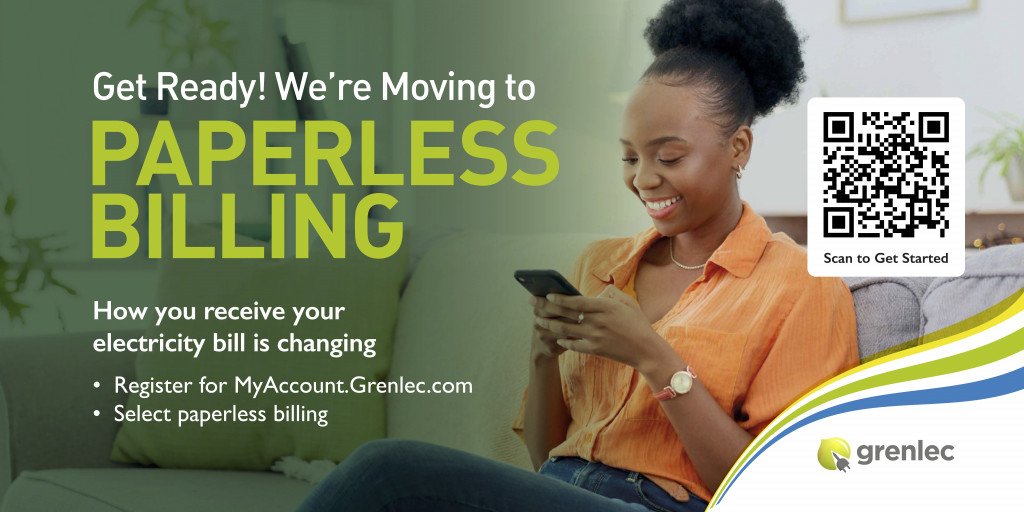
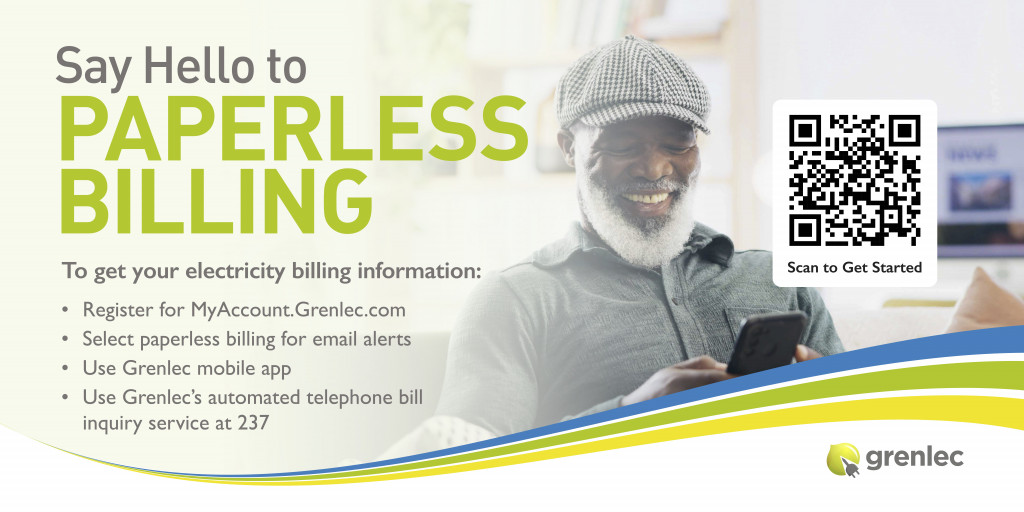
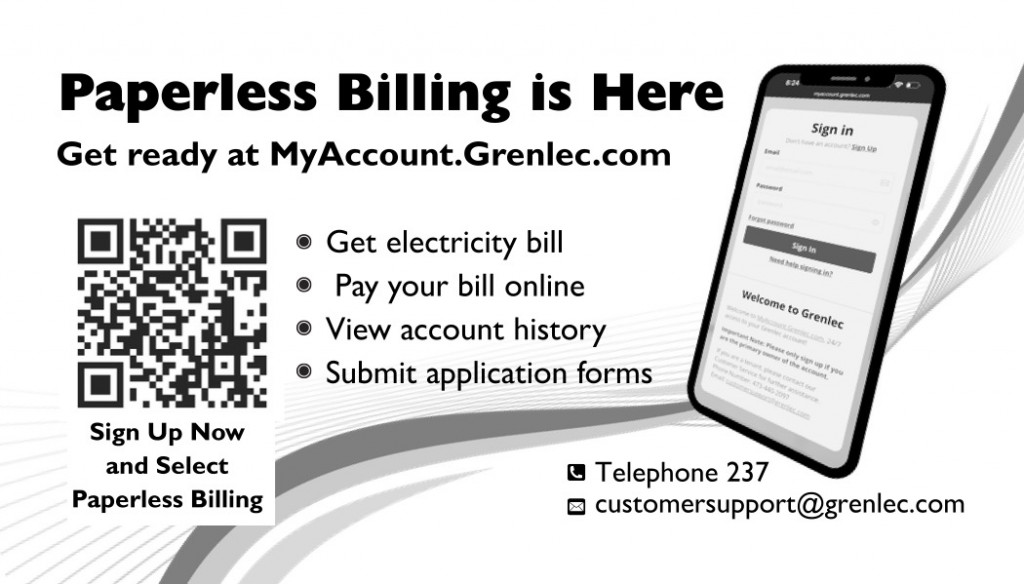
• Grenlec is moving all customers to paperless billing. Get ready by registering for MyAccount.Grenlec.com to view your bill and sign up for paperless billing to get your bill in your email inbox.
If you’ve made an error during payment:
Please contact our Customer Support Department for assistance.
You can reach us by phone at 237 or +1 (473) 440-2097 or by email at customersupport@grenlec.com.
If you’re experiencing a technical issue, take a screenshot of the error message and include it in your email to help us troubleshoot the problem more quickly.
For an incorrect payment:
Log into your account at MyAccount.Grenlec.com. Navigate to the “Services” tab and then to “Forms” on the left menu. Fill out the “Transfer of Incorrect Payments” form and submit this information to us. Our team will review your request and get back to you within 3 business days.
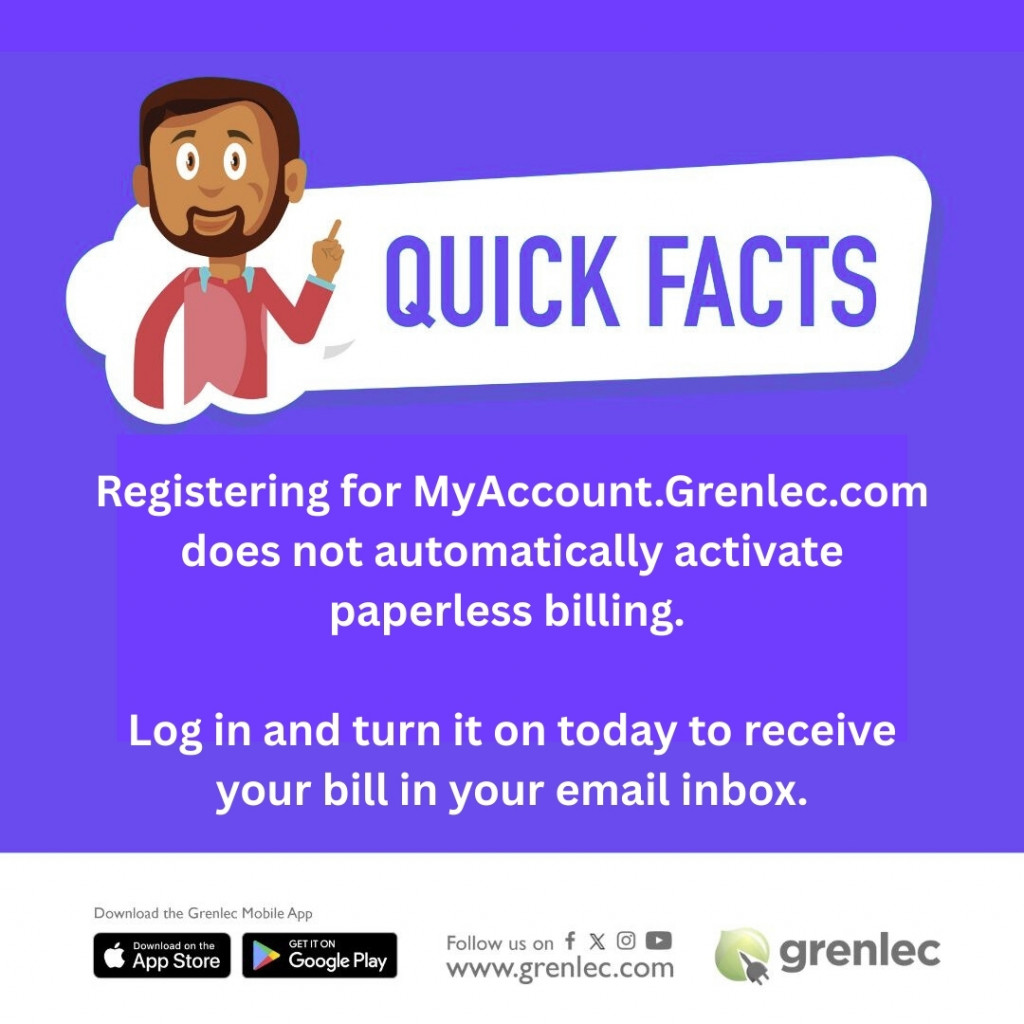
Grenlec is moving all customers to paperless billing. Get ready by registering for MyAccount.Grenlec.com to view your bill and sign up for paperless billing to get your bill in your email inbox.
https://grenlec.com/wp-content/uploads/2024/03/Grenlec-Understanding-Your-New-Bill-Brochure_Feb-2024.pdf
Register at MyAccount.Grenlec.com
- Log in to MyAccount.Grenlec.com and have your debit/ credit card details handy
- Under “AutoPay”, click “Sign Up”
- Follow the steps and remember to select the frequency of payments before checking the authorization box and clicking “Create AutoPay”
- Log in to your account
- If you have multiple accounts linked to your profile, click on “My Accounts,” then select the specific account for which you want to stop the recurring payment.
- Your recurring payment will show a Schedule number and an Edit button. Click Edit
- You will get a pop-up with Schedule Details. Click “Remove Schedule”, then click Confirm
- Log in to your account.
- Under “My Wallet”, click on “Manage”
- Click “Add Payment Method” or locate the payment method you wish to edit and click on the “Edit” button
- Follow the steps to complete the process
If you have more than one payment method, and you wish to change which one is the default payment method, click on “Manage” under “My Wallet”. Locate the payment method you want to select as the default, and click the “Make Default” button. You will now see a green checkmark and the word “Default” on the default payment method.
If you have multiple account numbers, you can link accounts using the “Add an Account” button in your Profile.
To change your email address:
- Log in to your account
- On the left side menu click on Profile
- Click the Pencil icon next to your name
o Click into the Primary Email field: You’ll see the current email address become editable
o Enter your new email address and click Save
- You will receive a confirmation email. Open the email message and click the confirmation link.
- A new web browser will open to confirm that your primary email address has been updated. Click the “Go back to the home page” to access your account
(Note: The previous email address will now be displayed under “Additional Emails”. You can delete this email by clicking the “Remove” button)
To change your contact phone number:
- Log in to your account.
- On the left side menu click on Profile
- Click the Pencil icon next to your name
- Click into the Phone Number field
o You’ll see the phone number become editable
o Enter your new phone number and click “Save”
To change your mailing address:
- Log in to your account.
- On the left side menu click on Profile
- Click the Pencil icon next to your name
- Your primary mailing address will be displayed. To change it, click Edit
You can only remove an account from your profile online if you are not the Primary customer on the account.
- Log in your account
- Go to Profile on the left menu
- Select Account section
- Click on the “Remove” button next to the account
If you are the Primary customer on the account please contact our Customer Service department for further assistance.
- Phone Number: 473-440-2097 | Email: customersupport@grenlec.com
- Or visit select Contact Us on the left menu and submit a support ticket
- Or visit any Grenlec Customer Care Centre for in-person assistance
- On the login page, click “Forgot password?”
- Enter your email address and click “Send Email”
- You will receive an email with a link.
o Click the link and you will be directed to set a new password.
o Create a new password with the requirements listed, confirm the password, and click Submit